
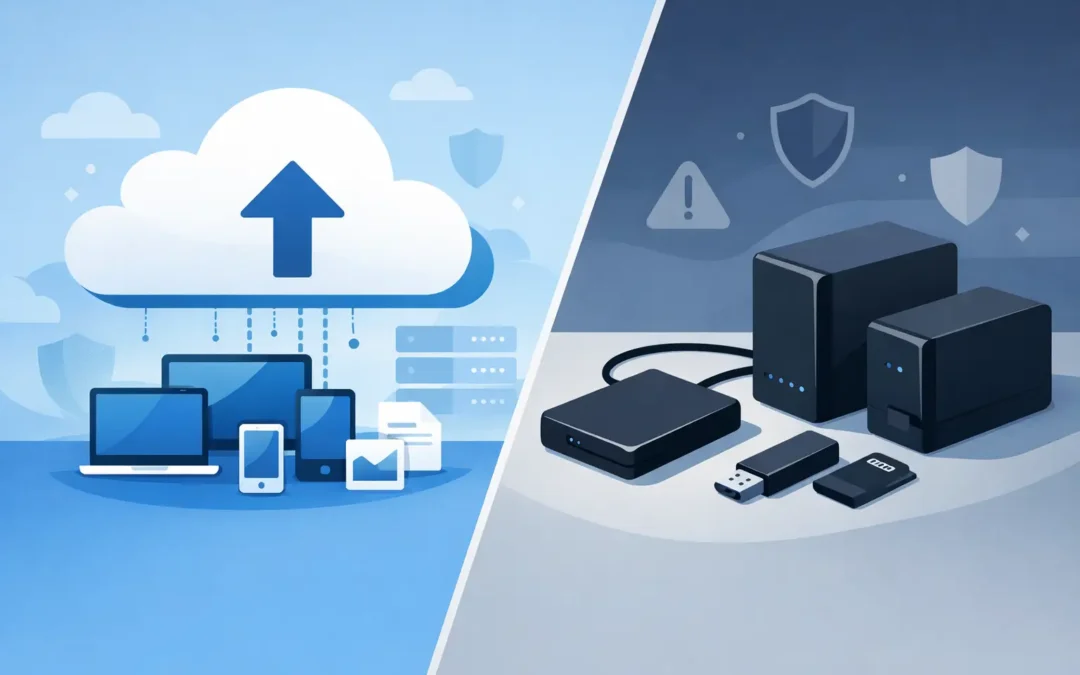
A laptop can fail without warning, but the bigger problem is often what was stored on it: family photos, coursework, client files, accounts and years of email. When weighing cloud backup versus external drives, the right answer is rarely one or the other. For most London homes and small businesses, the safest approach is to use both – with each covering a different risk.
An external drive gives you a local copy you can access quickly. Cloud backup keeps another copy away from your home or office, so a theft, fire, flood or major hardware failure does not take everything at once. The choice depends on how much data you have, how quickly you need it back and how much disruption you can tolerate.
Cloud Backup Versus External Drives: The Main Difference
External drives are physical devices, usually USB hard drives or solid-state drives, connected to a PC, laptop or Mac. You copy files to them manually, or set up software to run scheduled backups. The drive stays with you unless you store it elsewhere.
Cloud backup sends an encrypted copy of selected files, or sometimes your whole computer, to secure online servers. It runs automatically when configured properly and can restore data to a replacement device after a loss. You need a reliable internet connection, particularly for the first backup and for restoring a large amount of data.
The practical difference is location. An external drive may be faster to restore from, but it can be lost, damaged, stolen or infected alongside the computer. Cloud backup is stored off-site, but recovery can take longer when there are hundreds of gigabytes or several terabytes to download.
When an External Drive Is the Better Choice
An external drive is useful when speed matters. If a desktop will not start but the drive itself is healthy, having a recent local backup can mean you are working again the same day. It is also a sensible option for people with large video libraries, design files, gaming captures or photo archives that would take days to upload on a slower broadband connection.
It is usually a lower upfront cost too. Buy a reputable drive with enough capacity, keep it in a safe place and there is no monthly subscription. For a household backing up documents and photos, this can be a straightforward solution.
However, an external drive is only as good as the routine behind it. A drive left unplugged in a drawer for six months does not contain last week’s work. A drive permanently plugged into a computer may be affected by ransomware, power damage or accidental deletion. It can also fail just like the internal drive in a laptop.
For important files, rotate two external drives. Keep one at home or in the office for regular backups and another in a separate secure location. That adds protection, but it also adds responsibility. Someone still needs to connect the drive, check that backups complete and replace ageing hardware before it fails.
External drives work well for
External backup is often the right starting point for large local files, quick recovery needs and users who prefer a one-off purchase. It is also valuable as an additional copy for a business that cannot wait for a full online restore after an outage.
Choose a solid-state drive if you need portability and resilience against knocks. Traditional hard drives offer more storage for the money, but they have moving parts and should be handled carefully. Neither type should be treated as the only home for irreplaceable data.
Where Cloud Backup Has the Advantage
Cloud backup protects against the problems that happen beyond the computer itself. If a laptop is stolen from a train, an office suffers water damage, or a burglary takes both the PC and the external drive, an off-site backup can be the copy that saves the day.
Automation is the main benefit. Once it is set up, cloud backup can run in the background without relying on someone remembering to plug in a drive every Friday. For busy professionals, families and small offices, that consistency is often more valuable than the technology itself.
Cloud services can also keep earlier versions of files. If a spreadsheet is overwritten or a folder is accidentally deleted, you may be able to restore a previous version rather than accepting the latest damaged copy. This feature can be particularly helpful after a ransomware incident, although it depends on the provider’s version history and retention period.
Cloud backup has limits. Uploading an initial full backup can take a long time, especially where broadband upload speeds are modest. Restoring a complete computer after a major failure may also be slower than copying from a local drive. Monthly costs increase as storage requirements grow, and you need to understand what is included rather than assuming every cloud storage account backs up everything automatically.
A synchronised folder is not always a full backup. If a file is deleted on one device, that deletion may synchronise to every other device. Check whether your chosen service has proper backup, version history and recovery options.
Security, Privacy and Ransomware
Both options need sensible security. An external drive should be encrypted if it contains personal, financial or business information. Without encryption, anyone who finds the drive may be able to access the files. Keep recovery keys and passwords securely stored, not written on a label attached to the device.
With cloud backup, use a strong unique password and turn on multi-factor authentication. This is particularly important for business accounts, where access to one backup login could expose customer data, company documents and staff information. Confirm where your data is stored, how long deleted files are retained and whether your provider offers encryption.
Ransomware changes the conversation. If malware encrypts a computer and a permanently connected external drive, both copies may be affected. If it encrypts files that are immediately synchronised to cloud storage, that copy may also be compromised. The protection is having isolated backup versions that cannot be altered by the infected device.
This is why a simple 3-2-1 approach remains useful: keep three copies of important data, on two different types of storage, with one copy kept off-site. It does not need to be complicated. For many people, that means files on the computer, a backup on an external drive and an encrypted cloud backup.
What Small Businesses Should Consider
For a small business, lost files are not just inconvenient. They can stop invoicing, delay client work, create data protection concerns and leave staff unable to work. A single portable drive carried between home and office is not a reliable business continuity plan.
Businesses should decide which systems are essential to restore first. That may include Microsoft 365 data, shared documents, accounting records, line-of-business software, customer records and CCTV footage. The right backup plan should set clear recovery priorities, assign responsibility and be tested before there is an emergency.
It also helps to separate backup from ordinary file sharing. Staff may need easy access to shared folders, while the business still needs protected copies that are retained independently. Access controls, encryption and documented recovery steps are worth putting in place, even for a small team.
A Practical Setup for Most Homes and Offices
For home users, automatically back up documents, photos and other irreplaceable files to a trusted cloud service. Add an encrypted external drive for a local copy, particularly if you have a large photo or video collection. Check it monthly and keep it disconnected when it is not backing up.
For a small office, use managed cloud backup for critical business data and keep a local backup device for faster recovery where appropriate. Do not overlook laptops used away from the office, as these are often the devices most likely to be lost or stolen.
Whatever you choose, test a restore. Open a few backed-up documents, recover a deleted file and make sure you know the password and recovery process. A backup that has never been tested is only a hopeful assumption.
If your computer has already failed, avoid repeatedly restarting it or installing new software in an attempt to fix the problem. That can make data recovery harder. A2z Computer Solutions can assess failed PCs, laptops and Macs, help recover accessible data and set up a backup plan that suits how you actually work.
The best backup is the one that runs regularly, is stored safely and can be restored when you need it. Start with the files you would be most upset to lose, then build a second copy before the next fault, accident or missing laptop turns into a permanent loss.