
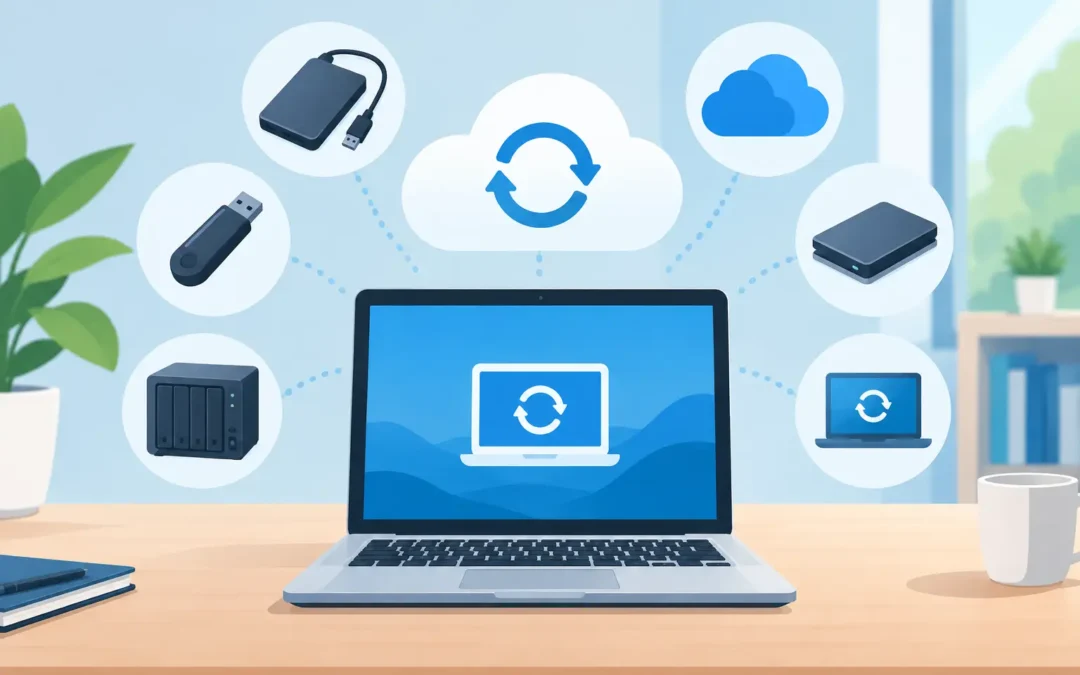
A laptop that will not start, a dropped external drive or a ransomware message can turn years of family photos, coursework and work documents into an urgent problem. The best backup options for home computers are the ones you can set up quickly, understand easily and rely on when something goes wrong. For most households, that means using more than one type of backup rather than trusting a single device or service.
Why one copy of your files is not enough
Many people assume their files are safe because they are stored on their PC, Mac or laptop. But the internal drive is only one piece of hardware. It can fail without warning, become corrupted after a failed update, be damaged by a spill or disappear with a stolen laptop.
A backup is a separate copy that lets you recover your files after a problem. It is not the same as moving files to another folder, nor is it always the same as synchronising them to a cloud service. If a file is deleted or encrypted by malware and that change synchronises everywhere, you need a backup with version history or a separate offline copy.
For home users, the sensible target is the 3-2-1 approach: keep three copies of important data, on two different types of storage, with one copy kept away from your home computer. You do not need to make this complicated. A local external drive plus cloud storage will meet this standard for many households.
Best backup options for home computers: what suits your needs?
The right choice depends on how much data you have, how quickly you need to restore it and whether your priority is family photos, work files or the whole computer. These are the main options worth considering.
External hard drives for a fast local copy
An external hard drive is often the best starting point. It offers plenty of storage for a modest upfront cost and is ideal for backing up a complete Windows PC or Mac, including documents, photos, applications and settings.
On a Windows computer, built-in backup tools can save selected folders or create a system image. On a Mac, Time Machine can back up your files automatically to a compatible external drive. Once configured, the process can run in the background while the drive is connected.
The advantage is speed. Restoring a large photo library or an entire computer from a drive at home is usually much quicker than downloading everything from the internet. The drawback is location: if the drive sits beside the computer, a burglary, fire, flood or electrical surge could affect both. Disconnect it after the backup has completed, and keep it somewhere safe when possible.
A solid-state drive is quicker and more resistant to knocks than a traditional hard drive, but it costs more per gigabyte. For a large archive of photos and videos, a standard external hard drive is usually better value. For someone who travels with a laptop and needs a compact working backup, an SSD may be worth the extra cost.
Cloud backup for off-site protection
Cloud backup stores your files in secure data centres rather than only on equipment in your home. This is particularly useful if your computer is lost, stolen or damaged beyond repair. It also makes important files available on another device when you need them.
There are two broad types. File-syncing services are useful for documents you work on regularly. They place files in a cloud folder and keep copies updated across devices. Dedicated cloud backup services are designed to protect a wider set of folders or an entire computer automatically.
Cloud storage is convenient, but check the details before relying on it. Look at the storage allowance, whether deleted files can be recovered, how long previous versions are retained and whether external drives are included. Uploading a large library can take days or weeks on a slower broadband connection, so the first backup needs patience. After that, only changed files normally need to upload.
For sensitive documents, use a strong unique password and turn on two-factor authentication. Cloud storage is not a reason to relax account security. If someone gains access to your email and cloud account, they may be able to reset passwords or remove files.
A second external drive stored elsewhere
If you have a large amount of data or poor broadband, rotating two external drives is a practical alternative to paying for lots of cloud storage. Keep one drive at home for regular backups, then periodically update a second drive and store it at a trusted family member’s house, in a secure workplace or another safe location.
This takes more discipline than automatic cloud backup, but it gives you an off-site copy without lengthy uploads. It can work well for photographers, gamers with large local files, or households with several computers. Label the drives and set a calendar reminder, otherwise the off-site copy can quickly become out of date.
Network attached storage for busy households
A network attached storage device, often called NAS, is a small storage unit connected to your home router. It can back up several PCs and Macs in one place, share files around the house and provide more storage than a typical portable drive.
NAS is useful where multiple people have laptops, desktops and mobile phones, or where a home office produces lots of files. Some units can copy data to a cloud provider or a USB drive, giving you another layer of protection.
However, a NAS is not automatically a complete backup solution. It remains in your home and can fail, be stolen or be affected by ransomware if it is always connected and accessible. Think of it as excellent local storage, then back its important contents up elsewhere as well. It also takes more setup than an external drive, so it may not be the best fit for someone who wants the simplest option.
Do not forget your mobile phone, email and account data
Home computer backups often miss the files people value most. Photos may live on a mobile phone, important messages may be held in email, and password managers, browser bookmarks and cloud folders may be tied to a single account.
Check that your mobile phone photos are backing up automatically and that there is enough cloud space available. Export or back up important email where appropriate, particularly if you use an older email account supplied by an internet provider. Keep recovery codes for key accounts in a safe place, rather than only on the computer you are trying to protect.
If you use Microsoft 365 or similar services for home working, confirm what is synchronised and what has a separate recoverable backup. Synchronisation helps with access, but version history and retention settings are what help when an accidental deletion is discovered days later.
Set up a backup routine you will actually follow
The most effective backup plan is boring and automatic. Start by identifying what cannot be replaced: personal photos and videos, schoolwork, financial records, work documents, creative projects and any files stored outside standard Documents or Pictures folders.
Then choose a simple arrangement. For many homes, an automatic daily backup to an external drive combined with cloud backup for essential files is enough. If your laptop is used for freelance work or business records, consider a second off-site drive or a dedicated cloud backup service for additional reassurance.
Check the backup once a month. Open a few files from it, confirm the date of the latest backup and make sure you can find the folders you would need in an emergency. A backup that has silently stopped running is no help when a drive fails.
Keep backup drives away from heat, moisture and places where they can be knocked over. Do not leave the only backup permanently connected if you are concerned about ransomware. Malware can sometimes encrypt connected drives as well as the computer itself.
When to get help with a backup or recovery
If your computer is already showing warning signs, such as clicking noises, repeated crashes, very slow access to files or messages saying the drive needs repairing, avoid repeatedly restarting it. Continued use can make data recovery more difficult. Back up what you can straight away, then seek professional advice.
Likewise, if a backup setup feels confusing, getting it configured properly once can save a lot of stress later. A2z Computer Solutions can help London home users set up practical backup, transfer files to a new computer and assess data recovery options when a device fails.
Your files are often worth more than the computer they sit on. Set aside an hour to make the first copy, automate the next one and test that you can restore a file. That small job is far easier than trying to recover everything after a failure.