
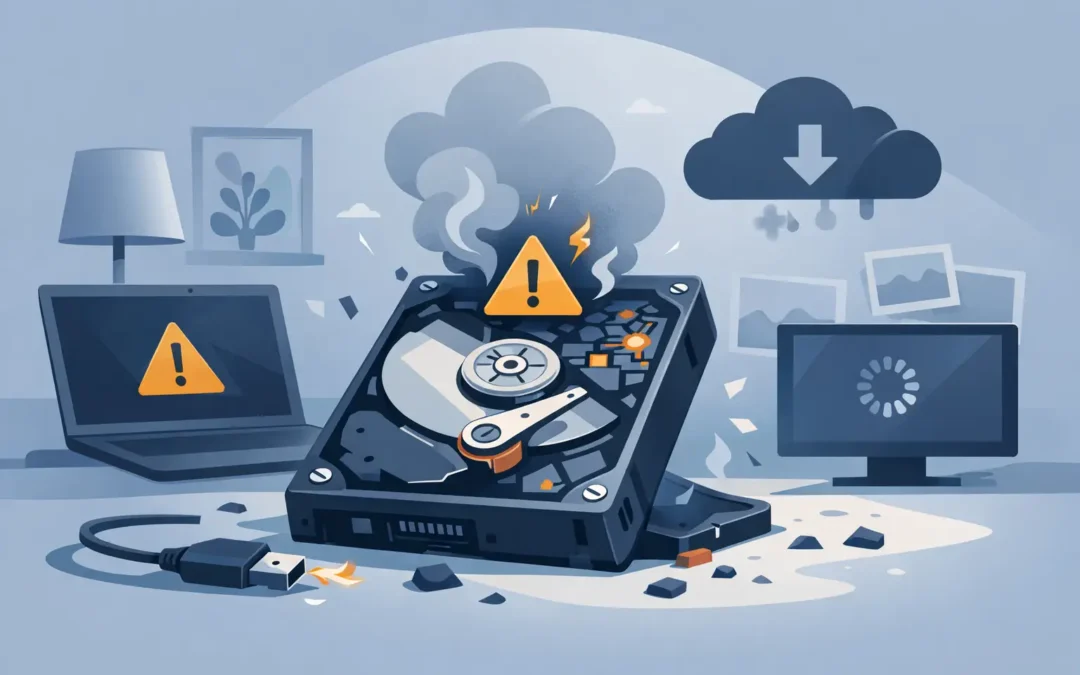
That clicking sound from your laptop is not something to ignore, especially if the machine is suddenly slow or files will not open. The best signs your hard drive is failing often start small, then become an urgent data-loss problem with very little warning. Whether it is a family PC, a work laptop, a gaming computer or an older iMac, acting early gives you the best chance of saving what matters.
A hard drive can fail because of age, physical damage, overheating, power issues or internal wear. Unlike an SSD, which has no moving parts, a traditional hard disk drive uses spinning platters and a moving read/write head. That is why a knock, a drop or repeated overheating can cause serious trouble. The key is knowing when a minor annoyance has become a reason to stop using the device and get help.
Best signs your hard drive is failing
Clicking, grinding or repeated beeping noises
A healthy mechanical hard drive makes a quiet hum and occasional soft activity sounds. Loud clicking, grinding, scraping or a repeating beep is different. It may mean the drive is struggling to read data, the internal head is failing, or the drive is not receiving enough power.
If you hear these noises, do not keep restarting the computer in the hope that it will settle down. Each attempt can put further strain on a damaged drive. Switch it off if possible and arrange a professional assessment, particularly if the drive contains irreplaceable photos, business documents or customer records.
A silent computer is not automatically safe, though. SSDs generally fail without the clicking associated with hard drives, so you still need to take other warning signs seriously.
Files disappear, will not open or become corrupted
A document that refuses to open once may be a software issue. A pattern of files disappearing, folders taking a long time to load, photos showing as blank, or documents reporting corruption is more concerning. The drive may be developing bad sectors – small areas that can no longer store or retrieve data reliably.
You may also find that a file opens, but its contents are incomplete or garbled. Do not overwrite it or save a new version to the same drive if it is important. Copy any accessible data to a separate external drive or secure cloud storage, provided the computer remains stable enough to do so.
Your computer becomes unusually slow
Slow performance has many possible causes. Too many start-up apps, low memory, malware and a nearly full drive can all make a computer feel sluggish. However, a hard drive that repeatedly pauses, freezes while opening basic folders or takes several minutes to start Windows or macOS may be struggling to read data.
Look for changes rather than one-off delays. If a laptop that normally starts in under a minute now sits on a loading screen, or File Explorer and Finder regularly stop responding, treat it as a warning. A failing drive often works intermittently before it stops being detected altogether.
Frequent crashes, freezing and error messages
Blue screens on Windows, repeated spinning beach balls on a Mac, unexpected restarts and applications that crash without a clear reason can point to storage trouble. You may see messages saying that a disk needs repairing, a file cannot be read, or the operating system cannot find a boot device.
These errors do not prove the hard drive is the cause. A faulty memory module, damaged operating system or motherboard issue can produce similar symptoms. But when crashes happen alongside slow loading, clicking noises or corrupted files, the likelihood of a drive fault rises sharply.
The drive is missing or not recognised
A computer that says “No bootable device”, “Operating system not found”, or cannot see an external hard drive should be checked promptly. Sometimes the fix is straightforward: a loose cable, failed enclosure, flat laptop battery or a corrupted system setting can stop a drive appearing.
Other times, the drive itself has failed or its connection has been damaged. Avoid repeatedly plugging in and removing an external drive, especially if it is making unusual sounds. Do not open a hard drive casing at home. The internal components are extremely sensitive, and DIY opening can reduce the chance of successful recovery.
SMART warnings and disk health alerts
Many computers can monitor a drive’s health using SMART data, short for Self-Monitoring, Analysis and Reporting Technology. You might receive a warning at start-up that the disk is failing, needs replacing or should be backed up immediately.
Take this message literally. SMART warnings can sometimes appear before total failure, which makes them one of the few useful chances to move your data in an orderly way. Back up the most important files first, starting with work documents, financial records, photos and any business databases. Do not delay the backup while running unnecessary scans or updates.
What to do when you spot a warning sign
Your next step depends on the condition of the computer and the value of the data. If it is working normally enough to access files and there are no clicking or grinding sounds, make a careful backup to a different physical location. A second partition on the same failing drive is not a backup. Use an external drive, secure cloud storage or both.
If the device is freezing, making mechanical noises, failing to boot or repeatedly disconnecting, stop using it. Running repair tools, disk checks or recovery software can be useful for a healthy drive with a minor file-system fault, but they can be risky when hardware is physically failing. The more the drive has to work, the less recoverable the data may become.
For a business, the priority is slightly different. Disconnecting a suspect drive may protect data, but you also need to keep staff working. A temporary replacement machine, access to cloud files and a plan for email and shared folders can reduce downtime while the original device is assessed. That is particularly important where one laptop holds key accounts, project files or local-only data.
Common causes of hard drive failure
Hard drives do not always fail because they are old, although age is a major factor. A desktop or laptop drive can run for years, while another fails early due to heat, poor ventilation, a power surge or a physical impact. Portable external drives are especially vulnerable when moved while powered on.
Water damage and liquid spills can also affect storage devices, even when the computer seems to recover at first. If a laptop has been dropped or exposed to liquid and then starts showing any of the symptoms above, switch it off rather than testing it repeatedly.
Full drives can create performance problems too, but lack of free space is not the same as hardware failure. Clearing space may improve a slow computer, yet it will not fix clicking, disappearing files or SMART alerts. A proper diagnosis avoids paying for the wrong repair.
Can you prevent data loss?
You cannot guarantee that a drive will never fail, but you can make the consequences far less stressful. Keep at least two copies of important files, with one stored away from the computer. For most home users, regular cloud backup plus an external backup drive is a sensible approach. Businesses should also make sure backups are checked and can actually be restored when needed.
Keep laptops cool, use suitable surge protection for desktop equipment, and never move an external hard drive while it is actively reading or writing files. If your computer is older and still uses a mechanical drive, replacing it with an SSD can improve speed and reduce the risk associated with moving parts. The trade-off is that SSD data recovery can be more complex after a serious electronic failure, so backups remain essential.
When the warning signs are already present, prevention has passed and preservation is the goal. A2z Computer Solutions can assess faulty PCs, laptops and Macs across London, advise on the safest next step and help with data recovery or a replacement drive where appropriate. The earlier you stop a failing drive from being pushed harder, the more options you are likely to have.