
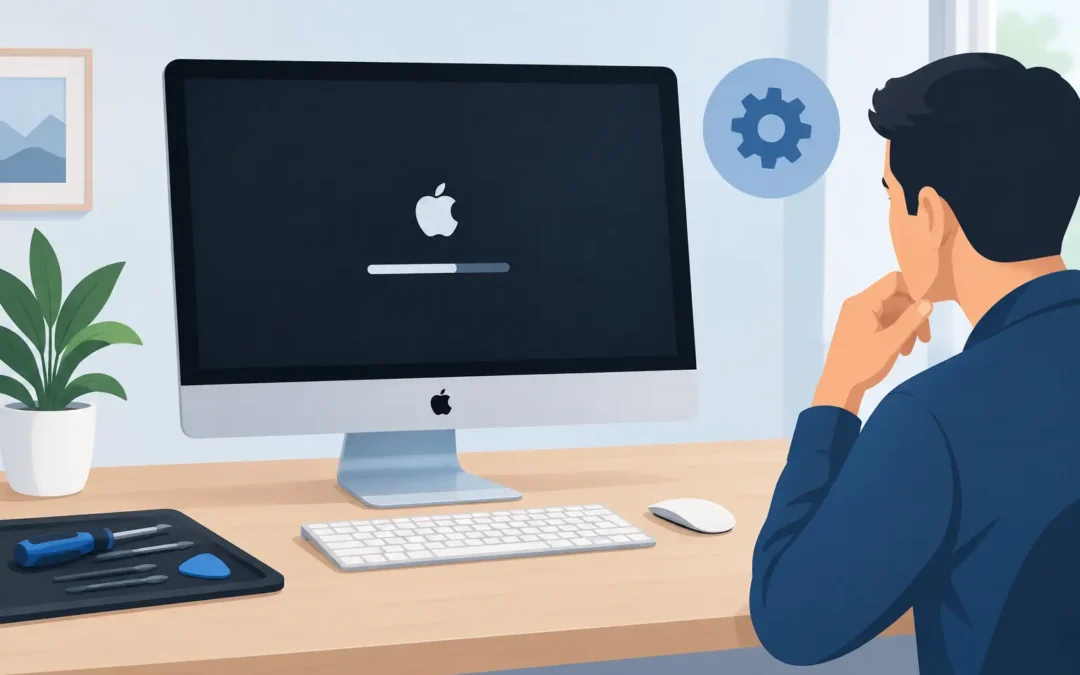
A blank iMac screen at 8.45am, just before a client call or school deadline, is more than an inconvenience. When you need iMac startup problem repair, the priority is to identify whether the Mac has no power, is starting but not displaying an image, or is stuck while loading macOS. Those symptoms can look similar from the outside, but they point to very different fixes.
Avoid repeatedly forcing the iMac off and on or attempting random online fixes. A few safe checks can save time, but persistent startup failures need a clear diagnosis – especially where work files, family photos or business accounts are stored on the machine.
iMac startup problem repair: start with the symptom
The most useful detail is what happens when you press the power button. Does the iMac make a startup chime, show the Apple logo, display a flashing folder, or stay completely silent? Does the screen light up at all? If the Mac reaches a login screen but then freezes, that is different again.
A fully unresponsive iMac may have a power supply, mains lead, socket or internal hardware fault. If you hear the fans or startup sound but see a black screen, the iMac may be running while the display, graphics hardware or screen connection is not working correctly. An Apple logo with a progress bar that never completes is more commonly connected to macOS, storage or a peripheral device.
For a home user, noting these details makes a repair faster. For an office, it also helps to establish whether the fault is isolated to one workstation or linked to power, network storage or a recent software change.
No power at all
First, check the obvious points carefully. Make sure the power cable is firmly seated in the back of the iMac and in the wall socket. Test the socket with another device if possible, and remove extension leads or adaptors temporarily. If you have recently moved the iMac, inspect the cable for damage and make sure it has not worked loose.
Disconnect all non-essential accessories, including external drives, USB hubs, printers and card readers. A faulty peripheral can occasionally prevent normal startup. Leave only the power lead, keyboard and mouse connected, then press and hold the power button for around 10 seconds. Wait another 10 seconds before trying to start the iMac again.
If there is still no sign of life, do not open the machine. Modern iMacs contain components that require specialist handling, and an internal power fault is not a safe DIY job.
Apple logo, progress bar or spinning wheel
An iMac that gets as far as the Apple logo is receiving power and beginning the startup process. That is encouraging, but a stalled progress bar can still indicate a failing internal drive, corrupted macOS files, insufficient free storage or a problem caused by a recent update.
Give it a reasonable amount of time once, particularly after a macOS update. If nothing changes after 20 to 30 minutes, force it to shut down by holding the power button, then remove external devices and try again. Do not keep repeating this cycle. Repeated interrupted startups can make existing file-system or drive issues worse.
A flashing folder with a question mark means the iMac cannot find a valid startup disk. It may be a macOS issue, but it can also be an early warning that the internal SSD, Fusion Drive or hard drive is failing. If important data has not been backed up, treat this as a data-recovery situation rather than rushing into a reinstall.
Black screen but the iMac appears to be on
Listen for fan noise, a startup chime on older models or keyboard response. Try increasing screen brightness with the relevant keyboard key, and disconnect any external display. If the screen remains black while the iMac appears powered, the fault may involve the display panel, backlight, graphics circuitry or logic board.
This is one area where installing macOS again is unlikely to help. A proper assessment can prevent money being spent on software work when the real issue is hardware.
Safe recovery checks you can try
The right recovery method depends on whether your iMac has an Intel processor or Apple silicon. If you are not sure, use the iMac’s approximate age or ask a technician to confirm before making major changes.
On an Apple silicon iMac, shut the Mac down, then press and hold the power button until startup options appear. Select Options to enter macOS Recovery. On an Intel iMac, start the machine and immediately hold Command and R to enter Recovery.
From Recovery, Disk Utility can check the startup disk. Select the internal drive and run First Aid. This can repair minor file-system errors, but it cannot repair a physically failing drive. If Disk Utility cannot see the internal drive, reports serious errors or repeatedly freezes, stop there and seek professional help.
Reinstalling macOS from Recovery may resolve damaged system files while keeping personal data in place. Even so, there is always risk where a drive is unhealthy or data is not backed up. If the iMac contains irreplaceable files, it is usually better to have the storage assessed before attempting a reinstall, erase or factory reset.
Intel iMacs can also sometimes benefit from an NVRAM reset. Start the Mac and immediately hold Option, Command, P and R for around 20 seconds. This can resolve some display and startup-disk setting issues. It is not a cure for a failed drive, liquid damage or a logic board fault.
When a startup issue needs an engineer
Some warning signs call for a professional diagnosis rather than further home troubleshooting. These include repeated crashes during startup, clicking or unusual noises from older hard-drive models, a flashing folder, visible screen faults, burning smells, liquid exposure, and an iMac that only starts intermittently.
It is also worth booking support when the machine contains business files, accounting records or photographs that have not been backed up. The first repair decision should protect the data. Erasing the iMac may make it boot again in some cases, but it can turn a recoverable data problem into a much harder one.
An experienced engineer can test the power supply, internal storage, display, memory where applicable and logic board, then explain whether repair is sensible for the age and specification of your iMac. Sometimes a macOS repair is all that is needed. In other cases, replacing a failed drive and transferring data offers better value than a more extensive board-level repair. It depends on the model, fault and condition of the rest of the machine.
For London customers who cannot afford extended downtime, A2z Computer Solutions can arrange fast iMac assessment and same-day support where possible. Apple-certified engineers can help at home or in the office, so you are not left trying to transport a large desktop computer across the city.
Reduce the chance of another startup failure
Once the iMac is working again, keep enough free storage for macOS updates and normal system operation. Back up important files regularly, ideally in more than one location, and use a surge-protected power source where mains fluctuations are a concern.
Be cautious with cleaning software, unofficial update tools and downloads that promise to speed up your Mac instantly. They can create startup conflicts or remove files macOS needs. If an iMac begins taking longer to start, freezing occasionally or showing disk warnings, arrange an inspection before it stops booting altogether.
A startup fault does not automatically mean your iMac is beyond repair. Acting early, keeping data protection ahead of quick fixes and getting the right diagnosis gives you the best chance of a straightforward repair and a quicker return to work.