
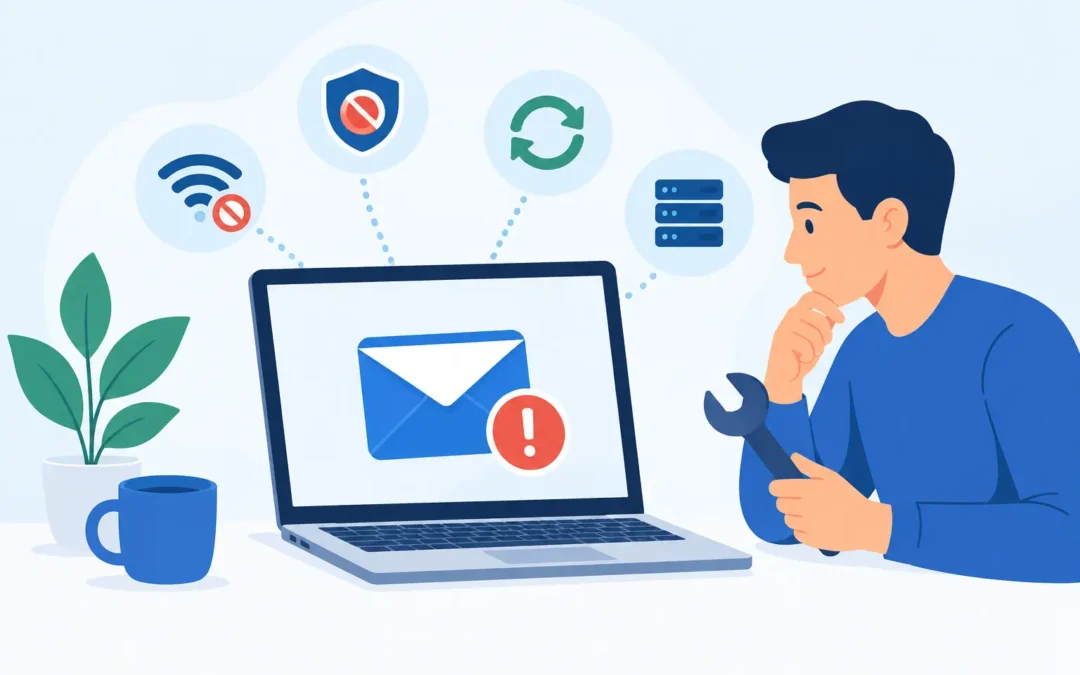
When email not working interrupts a job application, client reply, invoice or school message, it quickly becomes more than a minor annoyance. The useful question is not simply whether your inbox has stopped – it is where the failure sits: the device, the email app, your internet connection, the account itself or the sender’s system.
A few quick checks can resolve many email problems without risking messages or changing settings at random. If the issue is urgent, especially for a business account, act carefully. Repeated password attempts, deleting accounts or altering server settings can make recovery take longer.
Is Email Not Working on One Device or Everywhere?
Start by opening your email through webmail in a browser, rather than in Outlook, Apple Mail or the app on your mobile phone. If messages appear online but not in the app, the account is usually fine and the problem is local to that device or email software.
If you cannot sign in through webmail either, try another device using a different connection. This helps separate an internet problem from an account problem. For example, if email works on mobile data but not on your home WiFi, broadband or router settings may be the cause. If it fails everywhere, focus on the account, password, provider status or security checks.
For a business, check whether colleagues are affected. One person unable to send messages is likely to have a device, profile or account issue. An entire office unable to access email may point to Microsoft 365, DNS, broadband, firewall or wider network problems.
Check the Simple Causes First
The basic checks are worth doing because they often reveal the answer quickly. Make sure the device has a working internet connection by loading a few websites. Check that aeroplane mode is off on a mobile phone or tablet, and confirm that you have not accidentally set the email app to work offline.
Then look at the account storage. Gmail, Outlook.com, iCloud and business email services all have storage limits. A full mailbox can prevent new messages from arriving, and it may also stop you sending. Empty the Deleted Items and Junk folders, then remove large emails with attachments you no longer need. Be cautious with anything that may be needed for tax, legal or business records – archive it safely first.
Also check the date and time on the device. An incorrect clock can cause certificate and sign-in errors, particularly on older Windows PCs, Macs and mobile devices.
You Can Receive Emails but Cannot Send Them
Sending failures are common and the error message matters. A message stuck in the Outbox may have a large attachment, a poor connection or an incorrect outgoing server setting. Try sending a new, short test email with no attachment. If that goes through, the original message is probably too large or contains a file your provider has blocked.
Most providers limit attachment sizes, often to around 20-25MB once the file has been prepared for sending. Photos and video files can exceed that limit faster than expected. Reduce the file size or use an approved file-sharing method if one is available through your workplace.
If every message fails, check whether the recipient address is correct and whether you have recently changed broadband provider, router, antivirus software or email password. Some internet providers and security programs can interfere with outgoing mail settings. This is particularly common with older POP or IMAP accounts configured manually in Outlook.
Avoid changing SMTP settings unless you know the correct details for your provider. A single incorrect port, encryption option or server name can stop outbound email while making the cause harder to identify later.
Email Is Not Arriving in Your Inbox
A missing email is not always a delivery failure. Search all folders first, including Junk, Archive, Deleted Items and any folders created by rules. Search using the sender’s name, subject line or a distinctive word from the message rather than relying only on the Inbox view.
Next, inspect your email rules and forwarding settings. A rule may be moving messages into a folder automatically, deleting them or forwarding them elsewhere. This can happen after an account has been migrated, when a shared mailbox is added, or when an old rule is copied across devices.
Ask the sender to check whether they received a bounce-back message. If they did, the wording can identify the issue. A full mailbox, incorrect address, blocked domain or rejected attachment all need different fixes. If the sender did not receive a bounce-back, the message may still be delayed or filtered by spam protection.
For businesses, email filtering must be balanced properly. Strict protection can reduce phishing and junk mail, but it can also hold legitimate client messages. Whitelisting every sender is not the answer. It is better to review the quarantine, allow trusted domains where appropriate and keep security policies proportionate to the risk.
Password Problems and Security Alerts
If your email password suddenly stops working, do not assume the account has been hacked – but do treat it seriously. Providers may require you to verify your identity after detecting a new device, unfamiliar location or several unsuccessful login attempts. A password reset may be all that is required.
Use the provider’s official recovery process and create a unique, strong password. If multi-factor authentication is available, turn it on. This adds an extra sign-in check and is one of the best protections against account takeover.
Be especially alert if you see unusual forwarding rules, sent messages you did not write, contacts receiving suspicious emails from your address, or password reset requests you did not make. Change the password immediately, remove unknown devices and review mailbox rules. For a work account, tell your IT support provider or manager straight away, as attackers often use a compromised mailbox to target suppliers and colleagues.
Outlook, Apple Mail and Mobile App Problems
When webmail works but an app does not, restarting the app and device is a sensible first step. Install any pending operating system and email app updates, then check whether the app is asking you to re-enter the password.
On a Windows PC, Outlook can develop profile or cached mailbox problems. On a Mac, Apple Mail may show a connection error when the saved password is out of date or the mailbox needs to re-sync. On a mobile phone, background data restrictions and battery-saving settings can delay notifications even though emails are arriving normally.
Removing and adding the account again can work, but only after confirming that the account is fully synchronised and that important local-only messages are safe. This is a crucial distinction with older POP accounts, where mail may have been downloaded to one computer and not stored on the server. Deleting that account without a backup can put historic messages at risk.
When the Problem Is Your Internet or Network
Email needs a stable connection, but it does not need much bandwidth. If email fails alongside slow websites, dropped video calls or unreliable cloud files, investigate the network first. Restarting the router can help with a temporary fault, but it is not a cure for weak WiFi coverage, failing equipment or an incorrectly configured office network.
At home, test near the router and compare WiFi with a wired connection where possible. In an office, check whether the issue affects one area, one floor or all users. Poor WiFi signal, overloaded access points, network cabling faults and broadband outages can all look like an email issue at first.
When to Get Professional Email Support
Professional help is worthwhile when email problems keep returning, a business mailbox is inaccessible, security is a concern or settings need to be changed across multiple devices. It is also sensible if important emails may exist only on an old laptop, desktop or Mac and you are unsure how the account was set up.
A proper diagnosis should protect existing data, identify whether the problem is with the device, network or provider, and restore access without unnecessary disruption. For businesses, it should also include checking shared mailboxes, staff access, DNS records, spam filtering and backups where relevant.
A2z Computer Solutions provides practical email, Office 365, WiFi and network support for London homes and businesses, with same-day assistance available for urgent faults. The aim is simple: get your messages moving again and make sure the same issue is less likely to interrupt you next week.
If a message matters, do not spend hours guessing at settings or repeatedly restarting the same app. Establish where the fault is, protect your account, and get the right help before a small email problem turns into lost work or missed opportunities.