
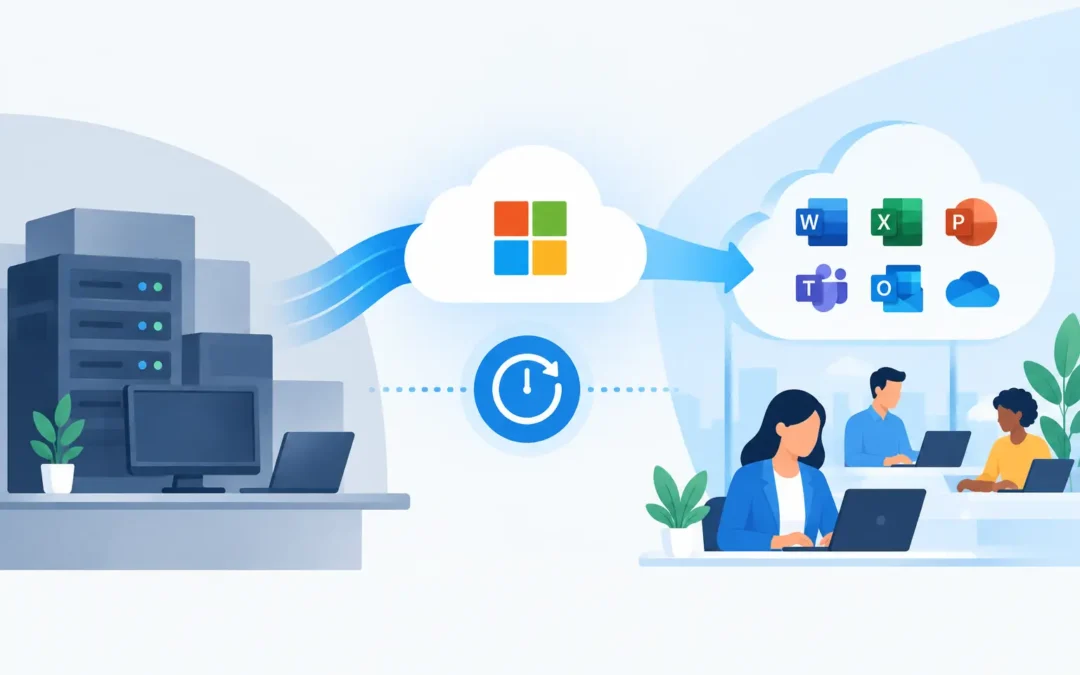
A failed email cutover at 9am can stop an entire office before the first coffee break. Messages go missing, staff cannot sign in, shared files appear unavailable and customers receive delivery errors. A well-planned Microsoft 365 migration prevents that kind of disruption by treating email, files, accounts and devices as one connected business system – not as a simple password change.
For a London business, the goal is straightforward: move to Microsoft 365 with as little downtime, confusion and data risk as possible. That takes preparation, sensible timing and someone available to resolve the issues that only become visible when real people start work.
What a Microsoft 365 migration actually involves
Microsoft 365 is often described as an email platform, but email is only one part of the move. Depending on your current setup, a migration may include Exchange Online email, Outlook calendars and contacts, OneDrive files, SharePoint document libraries, Teams conversations, user accounts, shared mailboxes, mailing lists and security settings.
The scope depends on where you are starting from. A small firm moving from a hosted email provider may need a relatively focused mailbox migration. An office moving from an ageing server, Google Workspace or another Microsoft tenant may need more careful planning around data, permissions and how staff already work.
This is why a migration should begin with an audit rather than a switch-off date. Before anything moves, you need to know how many active users there are, which email addresses receive business-critical messages, where files are stored, which devices access them and whether any older applications rely on the existing mail server.
Email is only one part of the job
A new Microsoft 365 account does not automatically bring every item across in the right place. Old emails may need to be transferred, shared inboxes recreated and calendars checked. Staff who use several devices – such as a Windows laptop in the office, an iPhone on the road and a home MacBook – need the new account configured properly on each one.
There can also be hidden dependencies. A website contact form, CCTV system, printer, accounting package or scanner may send email using the old provider’s settings. If those settings are not updated, the system may stop sending notifications after the cutover. These are small details until they create a real problem.
Start with a clear migration plan
The best time to find a problem is before migration day. A clear plan sets out what will move, who is responsible, what staff need to do and how success will be checked. It also gives the business a realistic view of timing.
Mailbox size matters. A few small mailboxes can move quickly, while years of archived correspondence may take longer. Internet connection speed, the condition of local devices and the number of files held in shared folders all affect the schedule. Moving everything overnight is sometimes possible, but it should never be assumed.
A practical plan normally covers four areas:
- user accounts, licences, passwords and multi-factor authentication;
- email mailboxes, shared mailboxes, contacts, calendars and forwarding rules;
- documents, folder structures and access permissions; and
- devices, Outlook setup, mobile access and business systems that send email.
The plan should also identify a cutover window. Many businesses choose an evening or weekend so the main change happens outside working hours. That said, a smaller migration may be better carried out during the day when key staff are available to test access. The right approach depends on the business, not a fixed rule.
Prepare users before the move
Staff experience is often the difference between a migration that feels controlled and one that creates a stream of avoidable support calls. People do not need a technical lecture, but they do need clear instructions.
Let them know when the change is happening, whether they will need a new password, how multi-factor authentication will work and what to do if Outlook asks them to sign in again. If Teams or OneDrive is being introduced at the same time, explain where shared files will live and whether existing folders are changing.
Avoid giving everyone a long checklist full of jargon. A short message with a date, a contact point and two or three actions is more likely to be followed. For example, staff may only need to keep their phone available for an authentication code, leave their laptop switched on and report any missing mail promptly.
Training is worth considering when working habits are changing. Microsoft 365 can reduce reliance on email attachments by storing shared documents in SharePoint or Teams, but that benefit disappears if users continue saving separate copies to their desktop. A little guidance at the beginning prevents confusion and duplicate files later.
Protect data and access during the migration
Migration is a security project as well as a productivity project. Email accounts hold customer information, invoices, passwords, contracts and internal conversations. If access is not secured correctly, a move can create risk even when the data transfer itself succeeds.
Multi-factor authentication should be enabled for all users, particularly administrators. Administrator accounts should be limited to people who genuinely need them, and old accounts should be removed rather than left active. Shared passwords are best avoided. Where a team needs access to a common address, a shared mailbox provides clearer control and accountability.
Permissions need the same care. When files are moved into OneDrive, SharePoint or Teams, the question is not simply whether the files arrived. The question is whether the right people can open, edit and share them – and whether the wrong people cannot. A finance folder, HR records and client documentation should not all have the same access level.
Backups also deserve a proper conversation. Microsoft 365 provides retention and recovery features, but they are not a substitute for deciding how your business will recover from accidental deletion, ransomware or a former employee removing files. The appropriate backup arrangement depends on your legal, operational and customer requirements.
Test before declaring the move complete
A migration is not finished when the progress bar reaches 100 per cent. It is finished when the business can work normally. Testing should include sending and receiving external email, checking shared mailboxes, confirming calendar access and opening important files from more than one device.
Test the items people use every day: a director’s mailbox, a shared sales address, a key client folder, a printer that scans to email and any web forms that generate enquiries. It is also sensible to check mobile phones, especially where staff need email away from the office.
Keep the old service available for an agreed period where possible. This creates a safety net while final checks are completed. It also helps when a forgotten archive or old mailbox needs to be reviewed. However, keeping two systems running for too long can confuse users, so the transition period should have a clear end date.
Common Microsoft 365 migration mistakes
The biggest mistake is treating migration as a one-click task. The software tools are capable, but tools do not know which mailbox handles urgent orders, which folder contains sensitive staff records or which employee has an important local archive stored on an old laptop.
Another common issue is changing DNS records without checking the full email setup. DNS controls where email is delivered and how other services recognise your domain. Incorrect records can cause mail delivery failures or make legitimate messages more likely to be treated as suspicious. Changes should be planned, recorded and verified after they go live.
Businesses also underestimate the importance of device support. An employee may be able to access email through a web browser, yet still be unable to work properly because Outlook is prompting repeatedly, a Mac has an old profile, or a mobile device has not been enrolled correctly. Practical on-site or remote help makes a real difference during the first working day.
When to use professional migration support
A very small setup with a few uncomplicated mailboxes can sometimes be managed internally. The trade-off is time: someone in the business must learn the process, carry out the checks and be ready to fix issues while still doing their normal job.
Professional support is especially useful when you have several users, large mailboxes, shared folders, compliance requirements, a mix of Windows and Apple devices, or a deadline that cannot slip. A2z Computer Solutions can plan the move, configure accounts and devices, check email delivery and provide practical support for your team in London.
The right Microsoft 365 migration should feel uneventful to your customers and manageable to your staff. Plan it around how your business actually works, test the details that matter and make sure help is available when the new working day begins.