
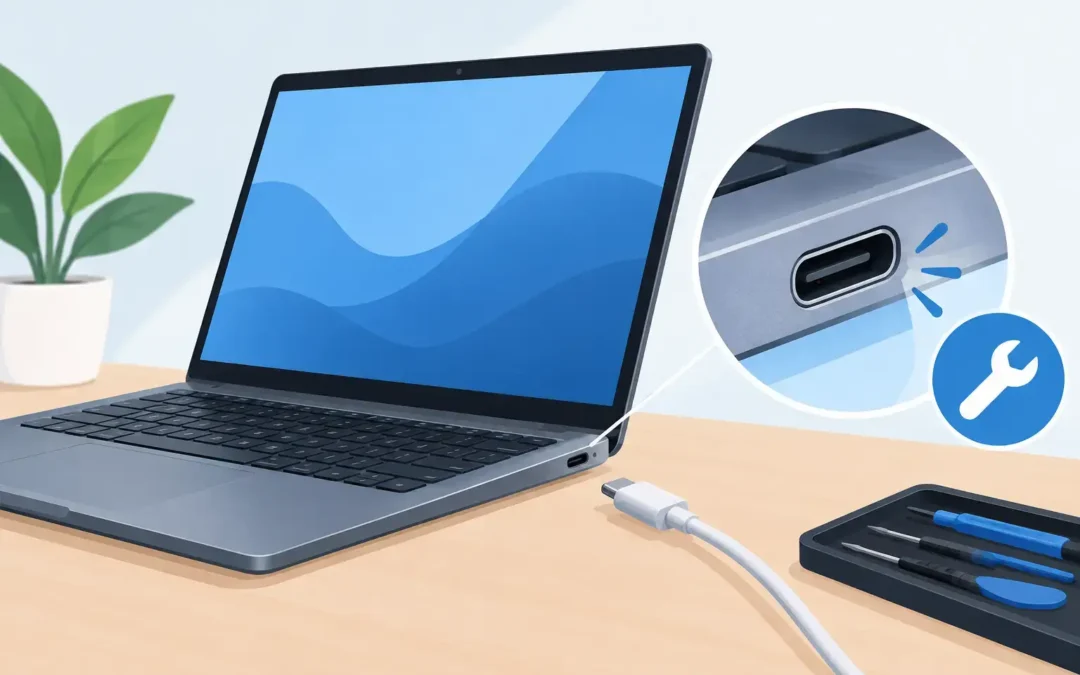
A laptop that only charges when the cable is held at a certain angle is not just an annoyance before a meeting. It is often the first sign that you need to fix PC charging port damage before the connection fails completely. If your battery is running low, avoid repeatedly twisting the plug or forcing it into place. That can turn a straightforward repair into damage to the internal power board or motherboard.
For London households, students and businesses, a charging fault can bring work to a halt quickly. The good news is that many charging problems are repairable. The key is working out whether the fault is with the charger, battery, charging port or another internal component.
Signs Your PC Charging Port Needs Attention
A loose connection is the most familiar symptom. The charger may connect and disconnect as the cable moves, the charging light may flicker, or the laptop may only receive power when the plug is positioned in one particular direction. These signs can point to a worn or damaged DC-in port, especially if the laptop has been used on a sofa, at a crowded desk or while the cable is under tension.
You may also notice that the plug feels unusually loose, sits at an odd angle, or will not go fully into the socket. Visible debris, bent metal inside the port, scorch marks or a burnt smell need prompt attention. Stop using the charger if you see heat damage or smell burning. Continuing to apply power could damage other components and presents a safety risk.
Not every charging issue is a port issue. A faulty power adaptor can give the same impression, as can a worn battery, a damaged charging cable, a failed power-management component or a software issue. Proper diagnosis prevents you from paying for the wrong repair.
Safe Checks Before You Fix a PC Charging Port
Start with the simple checks that do not involve opening the laptop. Inspect the cable from plug to power brick and from brick to wall socket. Look for fraying, crushed sections, exposed wiring or a plug that is bent or loose. If the charger uses a detachable mains lead, make sure that connection is secure too.
Next, try a known-good wall socket. Extension leads and overloaded adaptors can create misleading power problems. If possible, test with a compatible charger that has the correct voltage, wattage and connector type. Do not use a random adaptor simply because it fits. An incorrect or low-quality charger can cause poor charging, overheating or further damage.
With the laptop switched off and disconnected from power, use a torch to inspect the charging port. Dust and lint can prevent a proper connection. A gentle puff of compressed air may remove loose debris, but do not insert metal tools, pins, liquids or excessive force into the port. The internal contacts are delicate and can bend easily.
If the port feels physically loose, do not keep testing it by wiggling the cable. The port may have broken away from its mounting point or damaged the connector beneath it. On some laptops, the charging socket is a separate replaceable part. On others, particularly slim models and many USB-C designs, it may be integrated with a daughterboard or soldered directly to the motherboard. That difference affects both repair time and cost.
Why Charging Ports Fail
Everyday use puts strain on a charging connection. The cable can be caught by a chair wheel, pulled by a child or pet, or bent sharply when the laptop is moved while plugged in. Repeated sideways pressure gradually weakens the socket and its solder joints.
Accidental liquid exposure is another cause. Even a small spill can lead to corrosion around the charging port, and the symptoms may appear days later rather than immediately. If liquid has reached the device, turn it off, disconnect the charger and avoid trying to power it back on. A quick assessment gives the best chance of limiting corrosion and protecting your files.
USB-C charging requires particular care. The connector is compact and convenient, but its pins handle power and data. A damaged USB-C port may affect external displays, docking stations and accessories as well as charging. Some laptops also need a charger with enough power delivery capacity to charge under normal use. A phone charger may appear to work, yet charge very slowly or not at all while the laptop is running.
When a Professional Repair Is the Right Choice
A professional repair is the sensible option when there is physical damage, intermittent charging, overheating, liquid exposure or no charging response after testing a suitable adaptor. Engineers can test the charger output, battery condition, power rail and internal connection before recommending the repair.
This matters because a charging-port replacement is not always a simple socket swap. A repair may involve replacing a DC jack cable, a USB-C daughterboard or a damaged connector. If the port is soldered to the motherboard, it requires specialist tools, careful board-level work and testing afterwards. Trying to remove or solder a port without the right equipment can lift circuit tracks and make a repair considerably more expensive.
For a business laptop, speed matters as much as the repair itself. A failed charging port can mean missed client calls, inaccessible files and staff unable to work away from the office. Before any repair, make sure critical data is backed up where possible. If the machine will still run on battery, save your current work and back up essential documents before it loses power.
A2z Computer Solutions provides practical PC and laptop repair support across London, including charging faults, batteries, power problems and internal hardware damage. An engineer can assess the fault, explain the likely repair route in plain English and help minimise downtime with same-day support where available.
What to Expect From a Charging Port Repair
The first stage is diagnosis. The engineer checks whether the charger supplies the expected power and examines the port for movement, debris, corrosion and damaged pins. They may also test the battery and internal power circuit, because charging faults can have more than one cause.
If the port is a modular part, replacement can often be relatively direct once the correct component is available. The laptop is opened carefully, the battery is disconnected, the damaged assembly is replaced and the device is tested with the appropriate charger. A repair involving motherboard soldering takes more precision and may take longer, particularly if heat or liquid damage needs further investigation.
The trade-off is clear: replacing a damaged charging port early is usually cheaper than waiting until intermittent power causes wider board damage. However, on an older laptop with multiple faults, it may be more cost-effective to compare repair costs with replacement options. A trustworthy engineer should be clear about that rather than recommending work that does not make financial sense.
Prevent the Problem Returning
Once the port has been repaired, small changes can make a real difference. Use the original charger or a reputable compatible replacement with the right specification. Keep the cable clear of walkways and chair wheels, and avoid lifting or carrying the laptop by its charging lead.
At a desk, give the cable enough slack so it is not pulled sideways. When travelling, disconnect the charger before packing the laptop away. If your device uses USB-C, insert and remove the plug straight rather than twisting it. A protective case can also reduce the chance of impact damage around the port.
If charging becomes unreliable again, arrange an assessment while the laptop still has enough battery power to back up your work. A prompt repair can keep a small connection fault from becoming an urgent loss of power at exactly the wrong moment.