
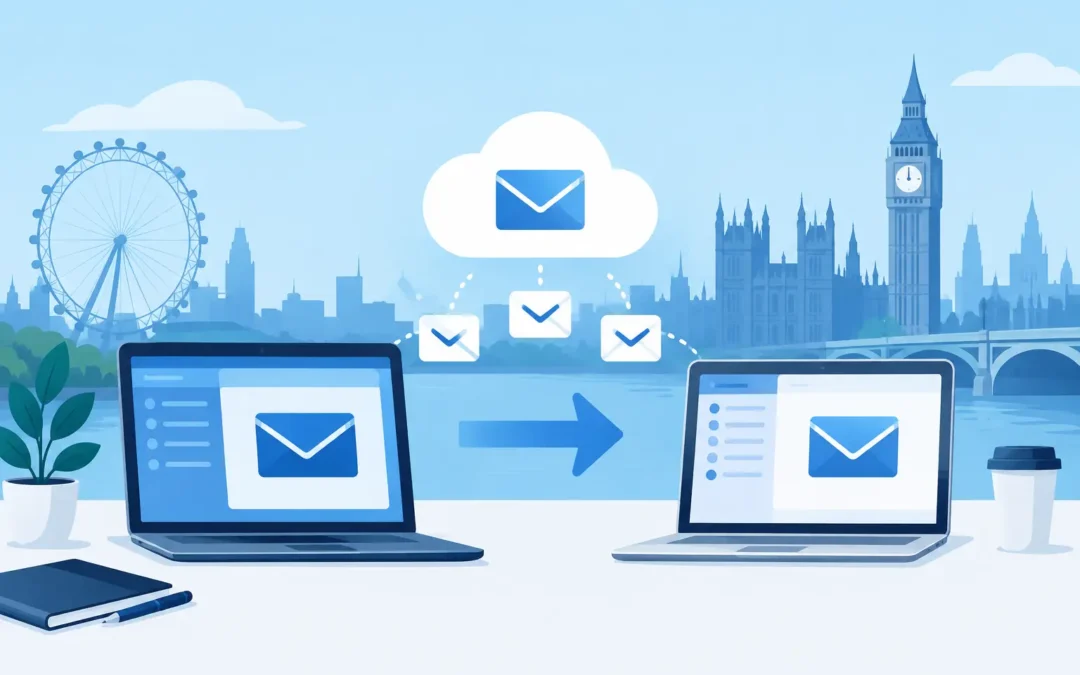
A successful email migration example is rarely about copying messages from one inbox to another. For a London office, it is about keeping staff able to send, receive, search old correspondence and access shared mailboxes while the underlying system changes. Get the planning right and most people will simply notice that their email is working better. Get it wrong and a small DNS setting can stop new enquiries reaching the business.
Email migration example: a 20-person office move
Consider a growing company with 20 staff. It has email spread across an ageing hosted email platform, several personal archive files saved on laptops, and a mixture of Outlook desktop, webmail and mobile access. The company wants to move to Microsoft 365 for better security, shared calendars and easier administration.
The challenge is not just moving 20 inboxes. There may be shared addresses such as accounts@, sales@ and enquiries@, former staff mailboxes that still receive important messages, aliases, distribution lists and large folders of historical email. Staff may also use email on their phones, at home and in the office. A migration plan needs to account for all of it.
In this example, the business chooses a weekend switch-over with preparation completed during the week. This is often a sensible approach for a small office, but it depends on how the business operates. A company that handles urgent client requests seven days a week may be better served by a carefully managed phased migration instead.
Start with a proper mailbox audit
Before any email is transferred, establish exactly what exists. Assumptions are expensive when it comes to business email. A director might use an old address as well as their current one, or the office manager may rely on a shared inbox that nobody initially mentions.
The audit should record each user mailbox, email alias, shared mailbox, distribution group, forwarding rule and archive. It should also identify who has access to which shared folders and calendars. This is the point to check how much data needs moving and whether any accounts are no longer required.
A mailbox with five years of attachments can take considerably longer to transfer than a lightly used account. Old email may also contain large video files, duplicate attachments or folders that no longer need to be retained. Deleting data without agreement is not the answer, but identifying it early allows the business to decide what should be migrated, archived or kept read-only.
It is also worth checking the source email system’s limits and security settings. Some older providers restrict the amount of data that can be accessed at once, which may affect the migration method and timescale.
Build the new email environment first
The new Microsoft 365 tenant should be prepared before moving live email. User accounts are created, licences assigned and security configured in advance. Staff can then be given temporary sign-in details and clear instructions for setting up their new mailbox when the switch takes place.
For a business, basic security should not be left until later. Multi-factor authentication, sensible password policies and anti-spam protection should be in place from the start. This avoids moving users to a newer platform while carrying forward an avoidable security weakness.
The setup also needs to mirror the way the business works. A shared enquiries mailbox may need several members with send-as permissions. A sales distribution list may need external senders permitted. A former employee’s address may need to forward to a manager for a defined period. These details are not technical extras. They are part of keeping the office running.
Transfer email before changing DNS
In most migrations, existing messages are copied to the new mailboxes while the old email service remains live. This is sometimes called a pre-stage migration. It gives the engineer time to move historic data without rushing the final changeover.
The first transfer may take hours or days, depending on mailbox sizes, connection speed and the source platform. During this period, staff continue receiving new messages on the existing system. A final synchronisation is then run close to the switch-over to collect the messages that arrived since the earlier transfer.
This approach reduces disruption, but it needs monitoring. Engineers should check for failed folders, oversized messages, corrupted items and accounts that have not completed. A migration report may show a high completion rate while still containing a few important exceptions, so the results need reviewing rather than simply accepting a green tick.
For small mailboxes and straightforward providers, a cutover migration can be quicker. For larger organisations, a staged or hybrid approach may give more control. The right choice depends on mailbox volumes, the current email platform, staff availability and how much downtime the business can realistically tolerate.
Change DNS carefully at the right time
DNS records tell the internet where a business receives email. The main MX record is central, but it is not the only setting that matters. Autodiscover, SPF, DKIM and DMARC records all play a part in how mail is delivered, authenticated and configured on devices.
When the MX record is changed, new inbound email begins routing to the new provider as DNS changes spread across the internet. Some updates happen quickly, while others can take longer because of caching. That is why a migration should not be scheduled ten minutes before a major client deadline.
A good plan lowers the DNS time-to-live in advance where appropriate, makes the changes during a quieter period and keeps access to the old platform available for a short safety window. Outbound sending should be tested immediately. If SPF or DKIM is incomplete, messages may land in recipients’ junk folders even though the new mailboxes appear to work normally.
Test the things staff actually use
A successful sign-in is only the beginning. Testing should reflect a normal working day, including sending and receiving from internal and external addresses, replying from shared mailboxes, calendar invitations, mobile access and searches for older messages.
The following checks are especially useful after the switch:
- Send messages to and from external accounts such as Gmail, Outlook.com and a client domain.
- Confirm that shared addresses, aliases and distribution lists receive and send correctly.
- Check calendars, contacts, permissions and free/busy availability for key users.
- Configure Outlook and mobile devices, then test mail away from the office WiFi.
- Review junk mail filtering and confirm that legitimate enquiries are not being blocked.
It is also sensible to ask a few staff members from different roles to test. Reception, sales and finance often use email differently, and they are more likely to spot a missing permission or address than a purely technical test account.
Support users after the change
The most common post-migration calls are not major failures. They are password prompts, old Outlook profiles, phones still connected to the previous service, cached address suggestions and uncertainty about where folders have gone.
Clear communication makes a real difference. Staff should know when the change is happening, what they need to do, how to access webmail if Outlook needs attention, and who to contact if something does not look right. Avoid sending a long technical document at 5 pm on a Friday. A short, practical message with sign-in details and a support route is more useful.
For businesses without an in-house IT team, on-site support can be worthwhile on the first working day after a migration. An engineer can deal with device setup quickly, check that printers and network access are unaffected, and reassure staff who are worried that old email has disappeared. A2z Computer Solutions can provide practical Office 365 and email support for London businesses that need the move handled with minimal interruption.
Common mistakes that cause avoidable disruption
One frequent mistake is treating email as a standalone system. Email addresses are often used to sign in to accounting software, cloud storage, websites and supplier portals. Changing a user’s primary address or removing an old mailbox without checking these services can create problems well beyond Outlook.
Another is overlooking delegated access. A manager may rely on an assistant to monitor their calendar, or several people may manage a shared account. These permissions do not always transfer automatically and should be checked against the original setup.
Finally, do not cancel the old service immediately. Keep it available until the new system has been tested, important data has been verified and the agreed retention period has passed. It is a modest precaution that can save a great deal of stress if a missing folder or old contact is discovered later.
Email migration is a change to a business’s daily routine, not just a technical job. With a clear audit, a controlled DNS switch and responsive support for staff, the transition can be quiet for all the right reasons.