
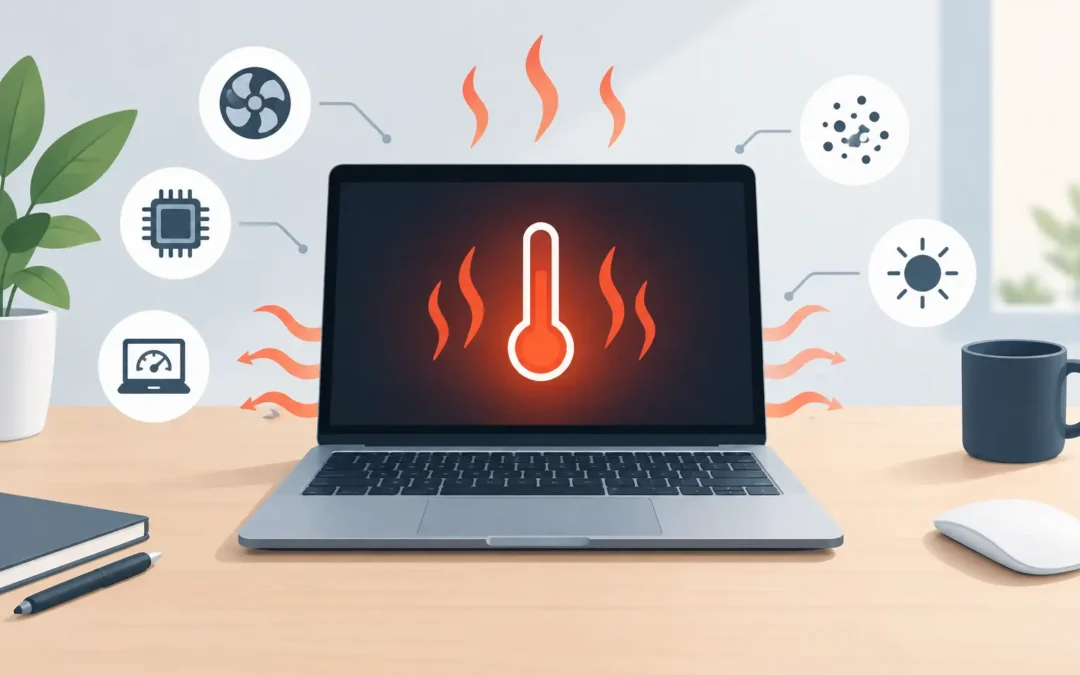
A MacBook that becomes uncomfortably hot during a video call, slows down while you are working, or has fans running at full speed is not simply being inconvenient. Heat can reduce performance, shorten battery life and, in some cases, point to a repair issue that should not be ignored. Understanding what causes MacBook overheating helps you decide whether a quick change in use is enough or whether it is time to get an engineer involved.
What causes MacBook overheating?
Every MacBook produces heat. The processor, graphics hardware, battery and charging circuit all work harder when you edit video, run several applications, join long Teams or Zoom calls, play games, or connect to an external monitor. Apple builds the machine to manage this heat, either with fans and vents or, on some thinner models, with a fanless design that lets the aluminium case release warmth.
Overheating becomes a concern when the Mac regularly gets very hot during light work, shuts down unexpectedly, becomes noticeably slow, or shows a temperature warning. These symptoms usually come down to one of four areas: demanding software, restricted airflow, ageing or faulty hardware, or a problem with charging and battery health.
Heavy apps and background processes
A single demanding task can make a MacBook hot, especially on older Intel models. Video exporting, photo processing, 3D design, gaming, programming tools and virtual machines place sustained pressure on the processor. Browser tabs are another common culprit. A dozen tabs may look harmless, but video streaming, web apps, adverts and browser extensions can consume considerable processing power in the background.
You can check Activity Monitor to see which apps are using the most CPU. If one application is consistently near the top while the Mac is idle, close it and restart the machine. If the issue returns, update or reinstall that app. It may be poorly optimised, stuck in a loop, or incompatible with your current version of macOS.
Background activity can be just as demanding. Spotlight indexing after a major update, iCloud synchronisation, Photos library analysis, Time Machine backups and antivirus scans may temporarily make the underside warm. This should settle once the task finishes. If it continues for days, it needs further checking.
Poor airflow and dusty cooling systems
MacBooks need space to shed heat. Using one on a duvet, cushion, lap or thick sofa blanket traps warmth around the case and can block the air intake or exhaust vents on models that have them. A hard, flat desk is the best place for sustained work.
Dust is a frequent cause of overheating in older MacBooks, particularly machines used in busy homes, offices, workshops or properties with pets. Over time, dust can build up in the fans and heatsink fins. The fan may still spin, but it cannot move enough air through the system to cool the internal components efficiently.
A noisy fan does not always mean the fan itself has failed. Often, it is doing its job because the Mac is running hot. Equally, a MacBook that is hot but completely silent may have a fan fault, a blocked vent, or a sensor issue. Avoid pushing objects into the vents or using a powerful household vacuum cleaner, as this can damage delicate internal parts. Proper internal cleaning is the safer option.
Hot rooms, direct sun and external displays
The room matters more than many people expect. A MacBook has less cooling headroom in a warm office, a sun-facing room or a car. Direct sunlight heats the aluminium body quickly, and the system then has to work harder to keep the components within a safe range.
External displays can also raise temperatures. Running a high-resolution monitor, particularly alongside video calls, creative software or multiple browser windows, increases graphics workload. This can be normal, but it should not result in repeated shutdowns or an unusable keyboard area. Try disconnecting the display for a short period to see whether the temperature and fan noise drop.
Charging, battery condition and power accessories
Charging creates heat, particularly when the battery is low and the MacBook is being used heavily at the same time. A little warmth around the charging area is expected. Excessive heat, intermittent charging, a burning smell, a swollen case or a trackpad that starts lifting are not normal.
Use a suitable Apple or reputable USB-C power adapter with a cable in good condition. An underpowered adapter may struggle when the Mac is under load, while damaged or poor-quality accessories can cause unstable charging behaviour. Check the battery condition in System Settings or System Information. A battery flagged for service, one that drains unusually quickly, or one that has swollen should be assessed promptly.
Do not continue to use a MacBook with a suspected swollen battery. Stop charging it, place it on a non-flammable hard surface and arrange professional support. Battery swelling can affect the trackpad, keyboard and internal components, so it is not a repair to put off.
Why overheating makes a MacBook slow
When temperatures rise, macOS protects the hardware by reducing processor speed. This is called thermal throttling. It can make simple tasks feel sluggish: applications take longer to open, cursor movement stutters and exports or downloads slow down.
This protection is useful because it prevents immediate damage, but it is also a sign that the Mac cannot cool itself effectively under the current conditions. Repeated thermal throttling can be especially disruptive for people who depend on their MacBook for work, university deadlines or business administration.
Modern Apple silicon MacBooks are generally efficient and often run cooler than older Intel machines. However, they can still get hot during demanding tasks or when airflow is restricted. Fanless models, such as some MacBook Air versions, are designed to warm up because there is no fan to hear. The key question is whether the heat is matched by poor performance, crashing, warning messages or a change from the MacBook’s usual behaviour.
Practical checks you can do first
Start by saving your work and restarting the MacBook. A restart clears many runaway processes that can keep the processor busy unnecessarily. Install any pending macOS and application updates afterwards, as updates often include performance and compatibility fixes.
Then place the MacBook on a clear, hard surface and remove any thick protective case for a test. Cases are useful for protecting against knocks, but some can hold heat around the base during long periods of intensive work. If the Mac is connected to several accessories, disconnect non-essential devices one at a time to identify whether a dock, display or peripheral is contributing.
Open Activity Monitor and look at the CPU tab. You do not need to understand every process. Focus on anything using a consistently high percentage of CPU when you are not actively doing demanding work. Quit the application if it is safe to do so, then see whether the temperature and fan speed improve.
It is also worth checking available storage. A nearly full drive does not directly create heat, but it can make the system work less efficiently and leave too little room for temporary files, updates and memory management. Keep a sensible amount of free space, especially if you regularly work with large files.
When a MacBook overheating issue needs repair
A one-off warm spell after a software update is usually manageable. Ongoing overheating deserves attention when the MacBook is hot at idle, fans run constantly, performance drops during basic tasks, or the machine restarts and shuts down without warning.
Other warning signs include rattling or grinding fan noise, no fan noise when there should be some, charging problems, liquid damage, a loose hinge area, a lifted trackpad, or a case that no longer sits flat. These can indicate a failed fan, degraded thermal material, blocked cooling path, battery fault, logic board issue or sensor problem.
For business users, it is better to deal with this before the machine becomes unreliable. Unexpected shutdowns can interrupt meetings, corrupt unsaved work and leave staff without access to files when they need them most. Back up important data before diagnostics or repair work, particularly if there are signs of battery, storage or liquid-related damage.
A2z Computer Solutions can assess MacBook overheating issues, clean internal cooling systems where appropriate, diagnose fan and battery faults, and advise on the most practical repair route. Same-day support can be particularly useful when a work machine is already slowing down or shutting off.
Keep the MacBook on a clear surface, pay attention to changes in fan noise or battery behaviour, and act early if heat becomes the norm rather than the exception. A prompt check can often prevent a small cooling problem from becoming an interrupted working day or a more costly repair.