
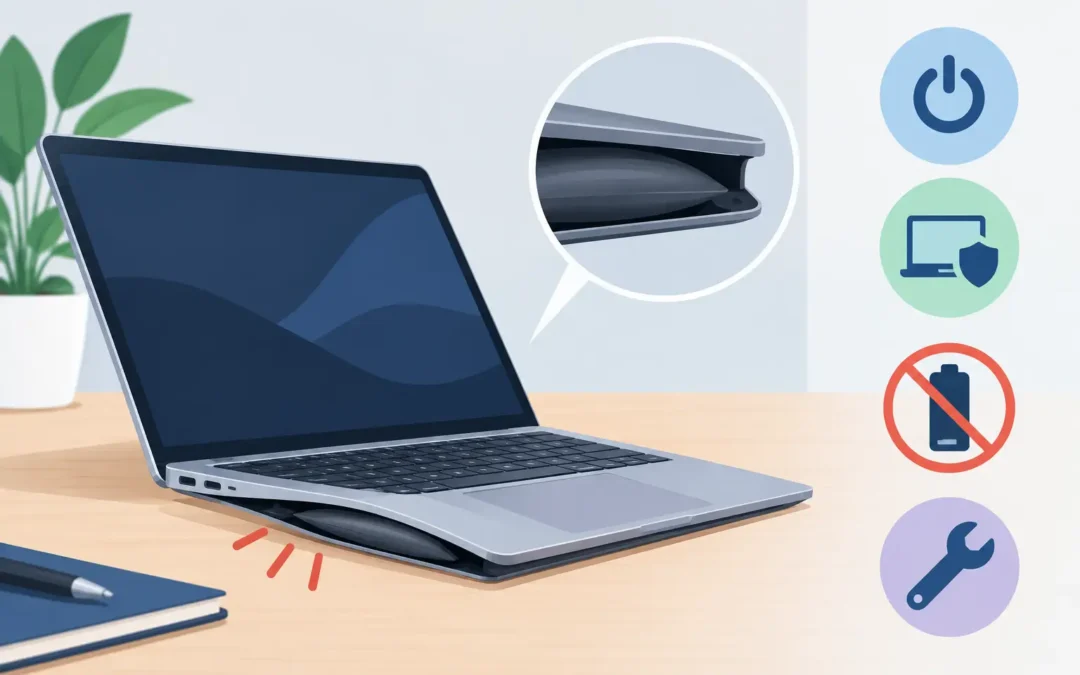
A laptop that suddenly rocks on a desk, has a lifting trackpad or will not sit flat is not having a minor cosmetic issue. If you are asking, is laptop battery swelling dangerous, the sensible answer is yes: stop using the device and arrange an inspection promptly. A swollen lithium-ion battery can damage the laptop from the inside and, in rare cases, create a fire risk.
The good news is that a swollen battery is usually repairable when it is dealt with early. The priority is protecting you, your data and the rest of the machine – not trying to squeeze the case back into shape or carry on until the battery finally fails.
Is laptop battery swelling a serious problem?
A laptop battery contains sealed lithium-ion cells. As batteries age or fail, chemical reactions inside the cells can produce gas. That gas has nowhere to go, so the battery expands. Unlike a flat tyre, it cannot simply be pressed back down or repaired in place.
Inside a thin modern laptop, even a small amount of expansion can put pressure on the trackpad, keyboard, bottom cover, screen hinges and motherboard. On some MacBooks, the first sign is a trackpad that no longer clicks properly. On Windows laptops, you may notice a bowed base, gaps around the casing or a keyboard that appears raised.
Do not assume the problem is harmless because the laptop still starts. A swollen battery can continue charging and working for a while, but use can make the fault worse. Pressure, heat and physical damage increase the chance of the battery leaking, overheating or failing suddenly.
Warning signs of a swollen laptop battery
The clearest sign is a case that is no longer flat. Place the laptop on a solid table. If it rocks from corner to corner, the base is bulging, or the lid does not close as it used to, stop and look more closely.
Other symptoms can be less obvious. The trackpad may feel stiff, raised or difficult to click. Keys may sit unevenly. You might see separation along the seam of the bottom cover, or find that the laptop has become unusually warm while charging. Reduced battery life, unexpected shutdowns and a charger that seems hot can also accompany battery failure, although these symptoms alone do not prove swelling.
On a business laptop, do not overlook a user reporting that their machine feels unstable on a desk. It is easy to treat this as a loose foot or worn casing, particularly on older devices. A quick professional check is safer than allowing a potentially damaged battery to remain in service.
What to do if your laptop battery is swelling
First, power the laptop down. If it is safe and straightforward to do so, unplug the charger and any connected accessories. Do not leave the computer charging overnight, place it under cushions, or keep it in a hot car, airing cupboard or direct sunlight.
Put the laptop on a hard, non-flammable surface away from papers, fabrics and children or pets. Avoid carrying it around in a tightly packed bag. Pressure on the casing can worsen the damage, and a swollen battery should not be taken on a flight.
If you need files urgently, it may still be possible to recover or transfer data safely, but this depends on the condition of the device. Do not keep restarting and charging the laptop in an attempt to complete a backup. An engineer can assess the battery, remove it correctly and help protect important documents, photographs and business data.
Never puncture, bend, crush or attempt to flatten the battery. Do not use adhesive tape to hold the case together. It is also unwise to follow a generic online battery-removal video unless you have the correct tools, model-specific instructions and experience handling lithium-ion batteries. Many batteries are firmly bonded into the chassis, and slipping with a metal tool can puncture a cell or damage the motherboard.
If you notice smoke, a hissing sound, a strong chemical smell or significant heat, move away from the device and keep others clear. If there is an immediate fire risk, contact the emergency services. Do not handle a smoking or burning battery.
Why laptop batteries swell
Battery swelling is usually linked to age and normal chemical deterioration. Lithium-ion batteries do not last forever: each charge cycle slowly reduces their capacity and can make internal failure more likely over time. A laptop used daily for several years is more likely to develop battery problems than a newer machine, although faults can occur at any age.
Heat is another major factor. Repeated use on beds, sofas or other soft surfaces can block cooling vents. Intensive gaming, video editing or running demanding office workloads while charging can also raise internal temperatures. Heat alone does not guarantee a swollen battery, but it can speed up battery wear.
Poor-quality replacement batteries and unsuitable chargers are a further risk. A charger must have the correct voltage, power rating and USB-C or proprietary charging standard for the laptop. The cheapest replacement is not always the best value if it leads to unreliable charging, overheating or another repair later.
Sometimes the cause is simply a defective cell. That is why a professional diagnosis matters. The engineer should check the battery condition, charging system and any damage caused by expansion, rather than replacing one part and assuming the job is finished.
Can you still use a laptop with a swollen battery?
No. It is not a condition to monitor for a few weeks or work around with an external mouse. Once a battery has expanded, it needs removing and replacing. Continuing to use it can turn a straightforward battery repair into a more expensive job involving the trackpad, keyboard, lower casing or motherboard.
The practical exception is a laptop with a removable external battery. If the battery is visibly swollen, switch off the laptop, disconnect the charger and remove the battery only if it releases normally without force. Do not use it again. For internal batteries, especially in slim laptops and Apple MacBooks, professional removal is the safer route.
A repair may involve more than fitting a new battery. The device should be inspected for cracked casing clips, a distorted trackpad, damaged cables and heat-related faults. If the swelling has pushed against the screen or hinge area, these parts need checking too. A proper repair restores safe operation rather than hiding the symptoms.
When repair makes financial sense
For many laptops, a quality battery replacement is a sensible repair, particularly if the screen, storage and main board are otherwise working well. This is often true for machines that are only a few years old, premium laptops and Macs that still meet your work or study needs.
It depends on the wider condition of the device. If an older laptop also has a failing hard drive, broken hinge, slow performance and obsolete software support, replacement may be better value. An honest assessment should weigh up the cost of the battery repair, any collateral damage and how long the laptop is likely to remain useful.
For businesses, there is a wider consideration: staff downtime. A swollen battery on one employee’s laptop can interrupt access to Microsoft 365, client files, email and day-to-day work. Prompt repair or a temporary replacement device can be less costly than waiting for a complete failure.
Preventing future battery problems
You cannot eliminate battery ageing, but good habits can reduce unnecessary strain. Keep vents clear and use the laptop on a firm surface. Use a suitable, reputable charger and avoid leaving a machine baking in direct sun or a hot vehicle. If the laptop has a manufacturer battery-health or charge-limit setting, using it can be worthwhile for a device that spends most of its life connected to mains power.
Pay attention to physical changes, not just battery percentage. A trackpad that stops clicking, a case that begins to separate or a laptop that no longer sits level deserves quick attention. Early action is safer, simpler and usually more affordable.
A2z Computer Solutions can inspect swollen laptop batteries across Windows laptops and Apple devices, identify any related damage and carry out a safe replacement. The best next step is simple: switch the laptop off, keep it somewhere safe, and get it checked before a small bulge becomes a larger problem.