
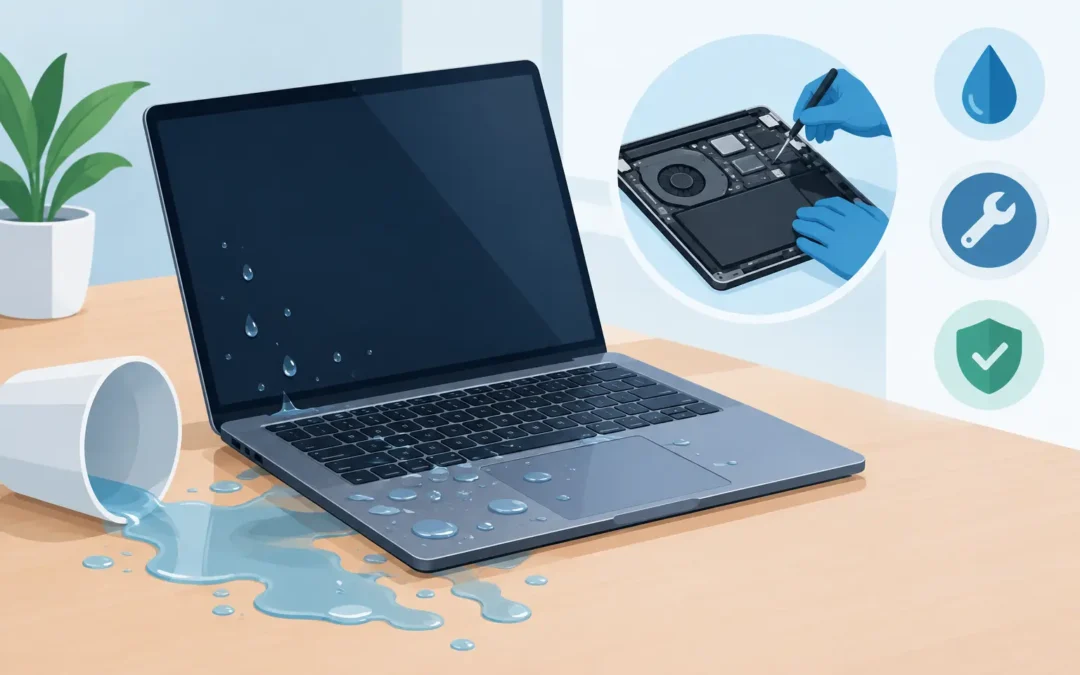
A drink tipped across the keyboard can turn a normal working day into a serious problem within seconds. The short answer to “is laptop liquid damage repairable” is often yes, but the outcome depends heavily on what was spilled, how much reached the internal components, and how quickly the laptop was switched off and assessed.
Water is not always harmless, and tea, coffee, fizzy drinks, wine and milk can be much worse. Sugars, acids and residue remain inside the machine after the visible moisture has gone. That residue can corrode delicate circuits over time, so a laptop that appears to work after a spill may still fail days or weeks later.
Is laptop liquid damage repairable in every case?
Not every liquid-damaged laptop can be restored economically, but many can. A repair may involve cleaning and treating the motherboard, replacing the keyboard, trackpad, battery, charging port, screen or other affected parts. In more severe cases, the motherboard may need component-level repair or replacement.
The key question is not simply whether the laptop turns on. A proper assessment looks at where the liquid travelled and whether corrosion has begun. On some models, the keyboard sits directly above the motherboard, allowing a spill to reach critical parts quickly. On others, drainage channels and internal shielding limit the damage.
A repair is more likely to be worthwhile when the spill is dealt with promptly, the liquid volume was small, and power was disconnected straight away. A newer business laptop, high-spec gaming laptop or Apple MacBook can also justify more involved repair because replacing the device may cost considerably more.
There are cases where repair is not the best value. If liquid has caused widespread corrosion across the board, damaged the display, battery and keyboard, or affected an older entry-level device, replacement can be more sensible. Even then, data recovery may still be possible.
What to do immediately after a spill
Your first few minutes matter. Switch the laptop off immediately by holding the power button if necessary. Disconnect the charger, USB devices, docking stations, external drives and anything else attached to it. Do not keep clicking to see whether it still works.
If the battery is removable, take it out. Most modern laptops have sealed batteries, so do not attempt to dismantle the device unless you are confident doing so safely. Turn the laptop upside down in a tent-like position on a clean, dry towel so liquid can drain away from the keyboard rather than further into the case.
Do not use a hairdryer, put the device on a radiator, or leave it in a bag of rice. Heat can warp plastic parts, push moisture deeper inside and damage the battery. Rice does not remove sticky residues or corrosion. More importantly, do not plug the charger back in to test it. Electricity and liquid damage are a poor combination.
If it is a work laptop, notify your IT contact as well. The device may contain company data, have encryption or management software, and need careful handling before any repair or replacement decision is made.
Why the type of liquid changes the repair
A small spill of clean water is generally less damaging than coffee with milk and sugar, although it can still cause a short circuit. Fizzy drinks, juice and alcohol can leave conductive or corrosive residue. Milk is particularly troublesome because it can dry into a sticky film that affects keys, connectors and internal components.
The longer a contaminated liquid remains inside the laptop, the more likely it is to create ongoing faults. This is why a machine that initially starts normally should not be treated as problem-free. Corrosion can continue underneath chips, connectors and shielding where it cannot be seen from the outside.
Professional cleaning is intended to remove residue before it causes further damage. It is not just a matter of drying the casing. A technician may need to open the machine, inspect the motherboard under magnification, clean affected areas and test charging, keyboard input, display, WiFi, audio, ports and battery behaviour.
Signs that liquid damage has reached internal parts
A laptop may show obvious symptoms straight away, such as refusing to power on, switching itself off, displaying a flickering screen or producing a burning smell. Other signs can be more subtle. Keys may type the wrong characters, the trackpad may behave unpredictably, charging may become intermittent, or the fan may run constantly.
Watch for random restarts, a battery that suddenly drains quickly, no WiFi connection, distorted sound or marks behind the screen. If any of these happen after a spill, stop using the laptop and arrange an assessment. Continuing to use it can turn a repairable issue into a board failure.
There is also a safety point. If the laptop becomes unusually hot, swells, emits a smell, makes crackling noises or shows signs of battery damage, disconnect the power and keep it away from flammable materials. Do not attempt to charge it.
Can your files be recovered after liquid damage?
Often, yes. Your files may be stored on an SSD or hard drive that has not been directly damaged, even if the laptop will not start. Data recovery depends on the storage type, the extent of the liquid exposure and whether the drive is encrypted.
Modern MacBooks and some Windows laptops have storage soldered to the motherboard. That can make recovery more complicated, as access to the data may depend on repairing the board enough for it to boot. Other laptops use removable SSDs, which can sometimes be tested separately.
Avoid repeated power-on attempts if your priority is valuable documents, photos, accounts or business data. Each attempt risks further electrical damage. Tell the technician that data is important before repair begins, so the work can be planned around protecting it.
What affects the cost of laptop liquid damage repair?
There is no honest fixed price for every spill because the damage varies widely. The make and model matter, as do the liquid type, the affected components, parts availability and whether board-level work is required. A straightforward internal clean and keyboard replacement is very different from repairing corrosion on a motherboard.
Apple devices and slim modern laptops can take longer to open and may use integrated parts, which can increase labour or replacement costs. Gaming laptops can have more complex cooling systems and larger boards, but their higher replacement value can still make repair worthwhile.
Ask for an assessment before approving major work. You should understand the likely fault, the proposed repair, the expected cost and whether your data is at risk. A good repair decision balances cost against the device’s age, specification, condition and the value of the files it contains.
Fast action gives you the best chance
Liquid damage is not always a write-off, but it is never a fault to ignore. Drying the outside and hoping for the best can leave corrosive residue working away inside the laptop. Early inspection gives you the best chance of saving the machine, avoiding a larger repair and protecting your data.
For London households and businesses that need a quick, practical response, A2z Computer Solutions can assess liquid-damaged Windows laptops and Apple devices, with same-day support available where possible. Keep the laptop switched off, bring the charger if you have it, and let an experienced engineer determine whether repair is the right option before more damage develops.