
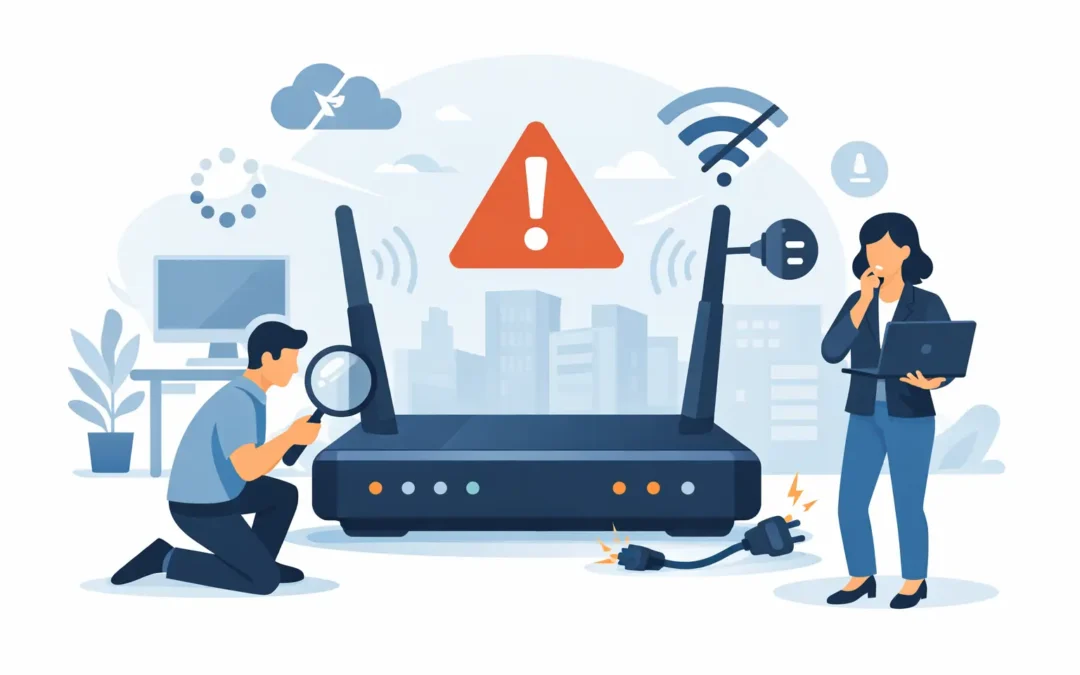
The moment the office internet drops, work starts to queue up. Cloud files stop syncing, Teams calls freeze, card terminals may fail and staff begin using mobile hotspots with mixed results. Knowing how to troubleshoot office broadband outages gives you a calm, sensible way to restore service quickly while avoiding changes that make the fault harder to diagnose.
The key is to establish whether the problem is with your broadband provider, your office network or one device. Do not start by repeatedly switching everything off. A short, structured check can save hours of downtime and provide the right information if an engineer or provider needs to take over.
Start by checking the scale of the outage
First, find out who is affected. Ask a few people in different areas of the office to open more than one website and use a cloud-based service. If only one person cannot connect, the broadband connection is probably working and the issue is likely to be their laptop, WiFi connection, network cable or account settings.
If everyone is offline, test both wired and wireless devices. A desktop connected by Ethernet that also cannot reach the internet points towards the router, firewall, broadband line or provider. If wired devices work but WiFi does not, your broadband is not down – the fault is likely to be with the wireless access points, WiFi settings or network coverage.
Check whether phones, CCTV cameras, printers or payment terminals have also lost connection. This helps reveal the true scope of the issue, particularly where the office uses separate networks for staff, guests and business equipment.
Check the router before changing anything
Look at the broadband router or modem lights. Their meaning varies by provider and model, but a red, flashing or unlit internet, broadband, DSL or fibre light often suggests a line or provider issue. A normal broadband light with no internet light may indicate an authentication or router configuration problem.
Make a note of the light status before restarting equipment. Take a clear photo if possible. It gives your provider or IT engineer a useful starting point and confirms whether the fault changes after a restart.
Also check for obvious physical problems. A loose power cable, disconnected Ethernet lead, damaged fibre patch lead or power socket switched off during cleaning can take down a connection. In a comms cupboard, avoid unplugging cables at random. Network switches, firewalls, routers and WiFi equipment may all look similar, but they do very different jobs.
If the router is hot, making unusual noises or has no power at all, check the power adaptor and socket. Do not substitute a random adaptor from another device, as the wrong voltage can damage the router.
Restart in the right order
If the provider has not reported a wider fault and all basic connections look secure, a controlled restart is reasonable. Tell staff first, as this will interrupt any remaining connections and calls.
Switch off the router or modem, then the firewall and any main network switches if they are managed as part of the same setup. Wait for around 60 seconds. Turn the modem or router back on first and allow it to reconnect fully. This can take several minutes, especially on fibre services. Then power on the firewall, followed by the switches and WiFi access points.
Restarting in this order matters. If the firewall starts before it has a live connection from the router, it may not renew its internet address correctly. Equally, restarting every device in the office at once can create a bigger problem than the original outage.
Rule out a provider fault
Before spending time on internal troubleshooting, check your broadband provider’s service-status page using a mobile connection. You can also check whether nearby businesses or neighbours using the same provider are affected. A local street works incident, exchange problem or wider provider outage cannot be fixed from the office.
When you report a fault, have the account number, office postcode, router light status and the time the problem began ready. Explain whether the issue affects all wired and wireless devices. This prevents the call being delayed by basic questions and helps the provider test the line remotely.
Be careful with provider advice to factory-reset the router. A factory reset can remove business settings such as static IP addresses, VPN configuration, WiFi names, passwords and port forwarding for CCTV or remote access. Only reset equipment if you have a current configuration backup or a qualified person can restore the settings afterwards.
How to troubleshoot office broadband outages inside the network
When the provider confirms the line is live, focus on the equipment between the broadband connection and staff devices. In many offices, the router connects to a firewall, then a network switch, then WiFi access points and wired desks. A failure anywhere in that chain can look like a full broadband outage.
Start with the firewall. Check that it has power and that the port connecting to the router shows an active link light. If the firewall has a management screen, check its internet or WAN status. It may show a disconnected connection, an expired address or a failed authentication message. Avoid changing firewall rules during an outage unless you know precisely what has changed and why.
Next, check the main switch. If it has no power or its uplink cable is loose, staff may lose access to the internet, server and printers at the same time. A single failed switch can affect an entire floor. Managed switches may also report a loop, port fault or unusually high traffic that needs investigation.
For WiFi-only faults, stand close to an access point and test whether you can connect to the staff network. If the network name has disappeared, the access point may be offline. If it appears but will not provide internet, try a wired test at the router or switch. This quickly separates a WiFi issue from a broadband issue.
Look for recent changes and power issues
Broadband outages often follow an apparently unrelated change. Think about what happened shortly before the fault began: a new phone system, building electrical work, an office move, a new firewall, a broadband contract change or someone tidying the comms cabinet.
Power cuts and brief voltage dips are another common cause. The broadband router may come back online while the firewall or switch does not. If your office depends on internet access for calls, sales and cloud systems, consider using an uninterruptible power supply for key network equipment. It will not solve a provider outage, but it can prevent short power events from becoming a longer manual recovery job.
Keep the business working while the fault is fixed
A temporary mobile broadband connection can keep essential staff online, but it should be used carefully. Mobile data may be slower, have usage limits and provide less predictable coverage in some London buildings. It is useful for email, urgent cloud work and contacting customers, but it may not support every user, large file transfer or phone system.
Prioritise the people and services that need connectivity most. This may include reception, customer service, finance, senior decision-makers and cloud telephone systems. Ask staff to pause large downloads, video streaming and personal device connections while working on backup connectivity.
If your business relies heavily on broadband, a properly configured 4G or 5G failover connection is worth considering. It can switch automatically when the main line fails, but it needs testing. An unused backup SIM, poorly placed mobile router or expired data allowance will not help during a real outage.
Know when to call an IT engineer
Call for professional help when the connection remains down after a provider check and controlled restart, when routers or firewalls show errors you cannot safely interpret, or when the outage affects critical business systems. It is also sensible to call an engineer if the fault keeps returning. Intermittent dropouts can be caused by poor cabling, failing equipment, WiFi interference, line faults or configuration issues, and they rarely improve through repeated reboots.
A2z Computer Solutions can provide fast London office support for broadband, WiFi, network cabling and wider IT faults. An engineer can test the line, router, firewall, switches and wireless network, then explain the problem in plain English and get staff back online with minimum disruption.
Keep a simple record after every outage: when it happened, what was affected, router light status, recent changes and the eventual fix. That small habit turns the next incident from a stressful mystery into a faster, more confident response.